Connected customer information

Know the customer behind every conversation.

Bring relevant customer information, communication history and relationship context together. Give your people and automations the information they need to support more meaningful customer interactions.
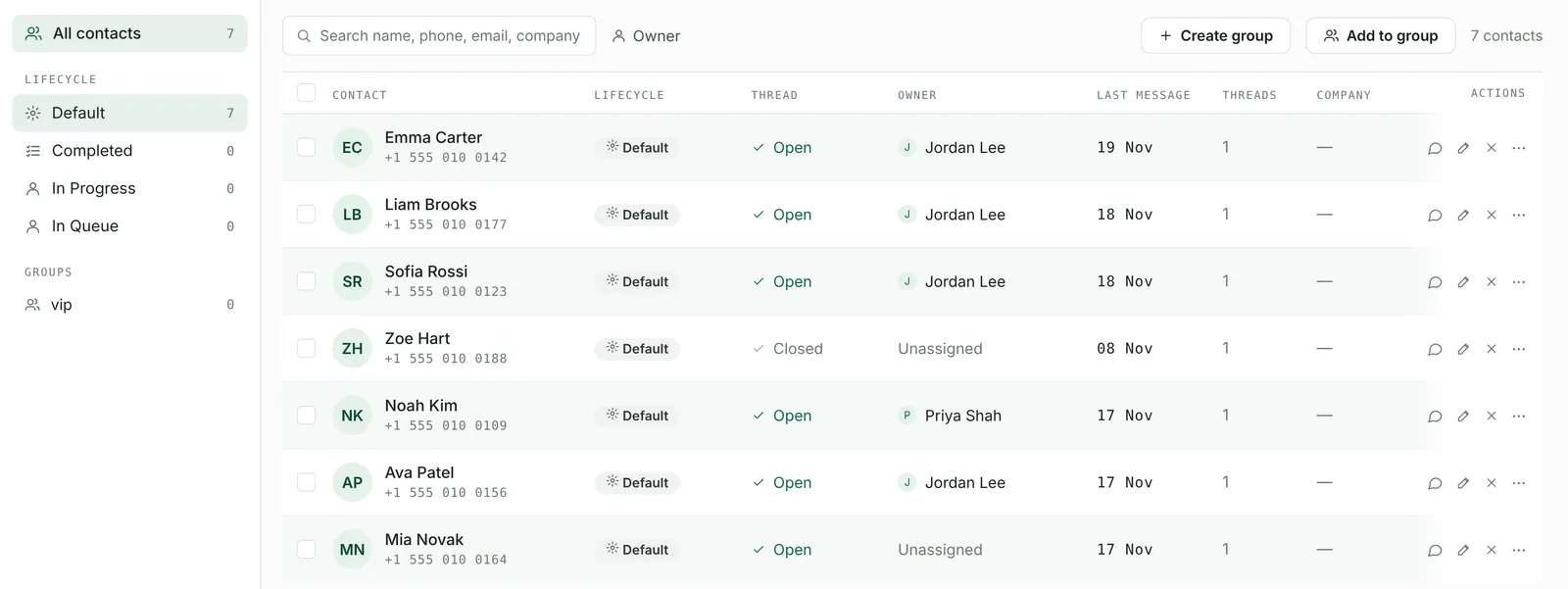
A table of sample Maple & Co contacts showing lifecycle stage, conversation status, owner and latest message
Illustrative example using sample Maple & Co data.
Six core capabilities

One record that works with your conversations.

  1. Understand.

    See available customer details and recorded activity in context.

  2. Customize.

    Add the fields that matter to your business.

  3. Organize.

    Use tags and lifecycle stages to keep records meaningful.

  4. Segment.

    Filter contacts to find the customers who match your criteria.

  5. Automate.

    Let configured workflows and AI Agents collect and update permitted information.

  6. Connect.

    Use the same information across the inbox, workflows and broadcasts.

The Golden Record philosophy

Every customer deserves to be understood.

Understanding a customer means more than a name and number. It connects what you know, what has been said, who is responsible and what has changed.

Explore Omnichannel Inbox
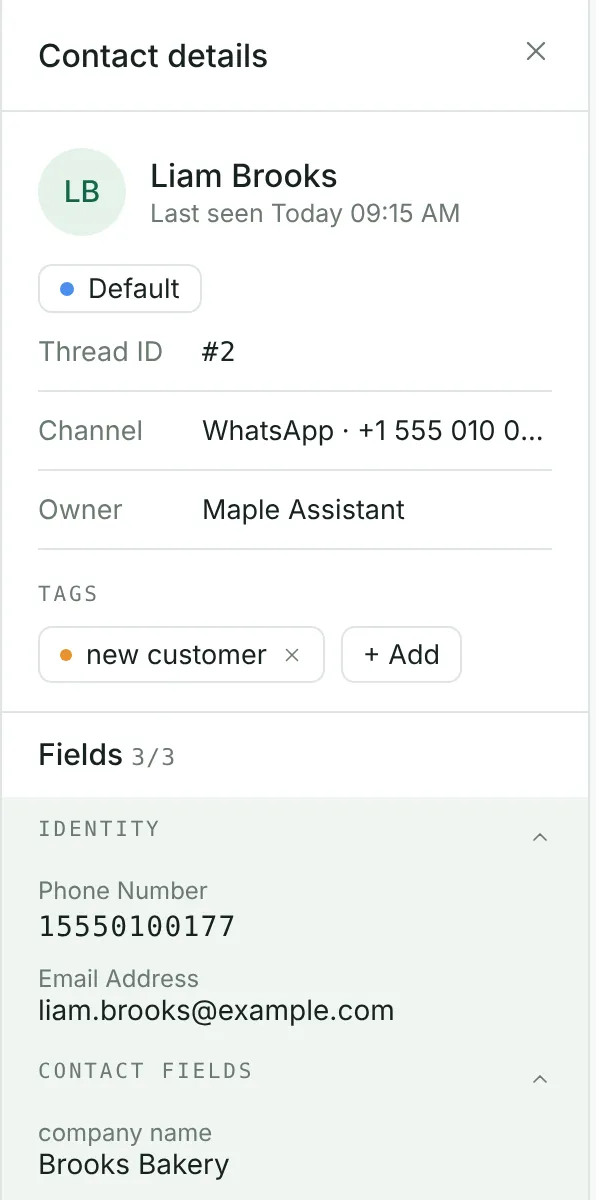
A sample contact record showing lifecycle stage, channel, owner, a tag, phone, email and company name
Information and ownership. Illustrative example using sample Maple & Co data.
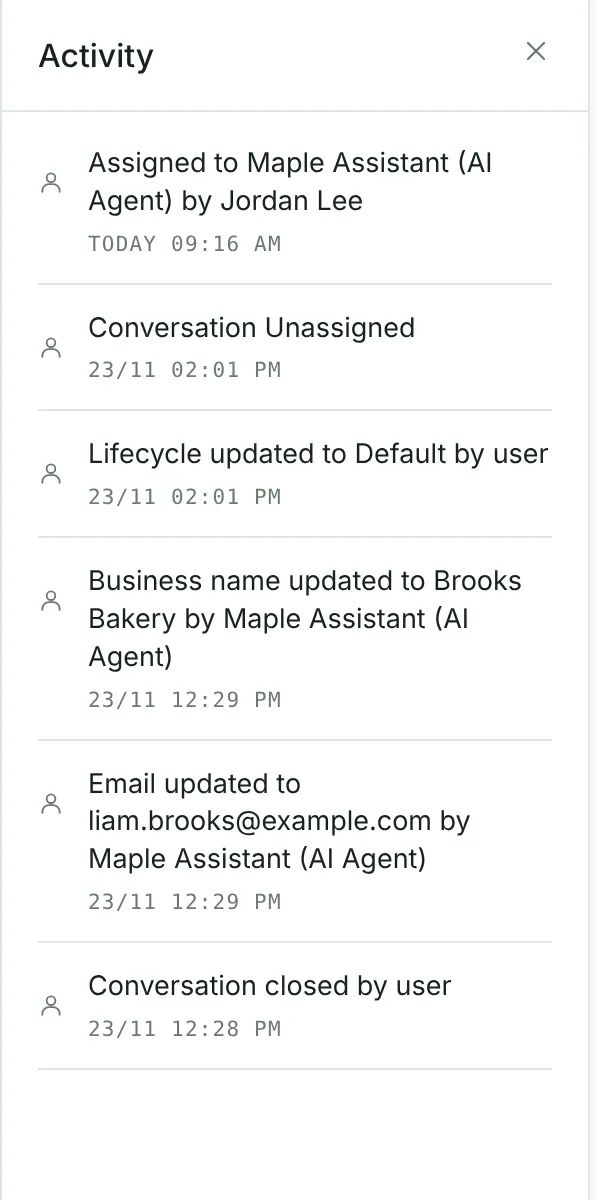
Recorded activity for a sample contact, including assignment, lifecycle and field changes and a closed conversation
Recorded activity.
Information
The contact details, fields, tags and lifecycle stage you hold.
Conversation history
The earlier messages available in your workspace.
Ownership
The teammate, team or AI Agent currently responsible.
Activity
Recorded changes such as assignments, status changes and updates.

A record holds the information available to your workspace. Retention depends on your agreement and the applicable policies.

Custom contact fields

Record what your business needs to know.

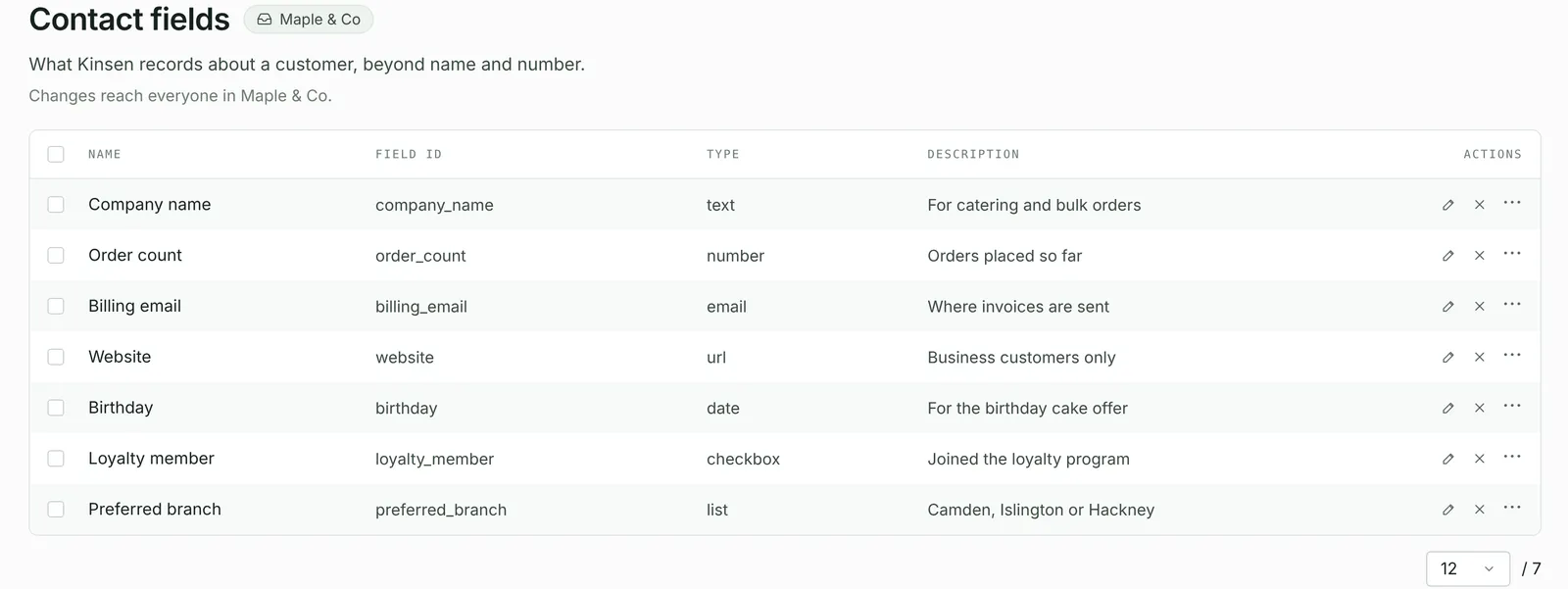
Configure fields for your own information, and choose a type that fits each one.

Field types
  • Text
  • Number
  • Email
  • URL
  • Date
  • Checkbox
  • List or dropdown
A list of sample custom contact fields with their types, including text, number, email, URL, date, checkbox and list
Fields defined for a sample workspace, each with a type. Illustrative example using sample Maple & Co data.
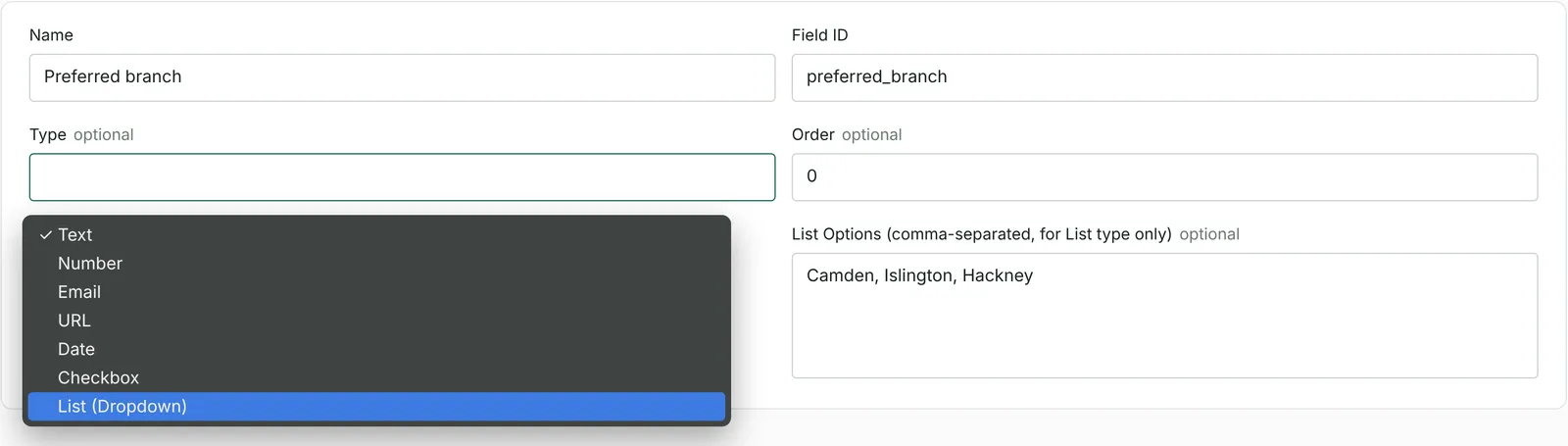
The field editor with the type menu open, offering text, number, email, URL, date, checkbox and list
Choose the type when you create a field. A list field has its own options.
Tags and segmentation

Organize contacts into useful audiences.

Add tags for context, then filter the contact list to find the people relevant to a task.
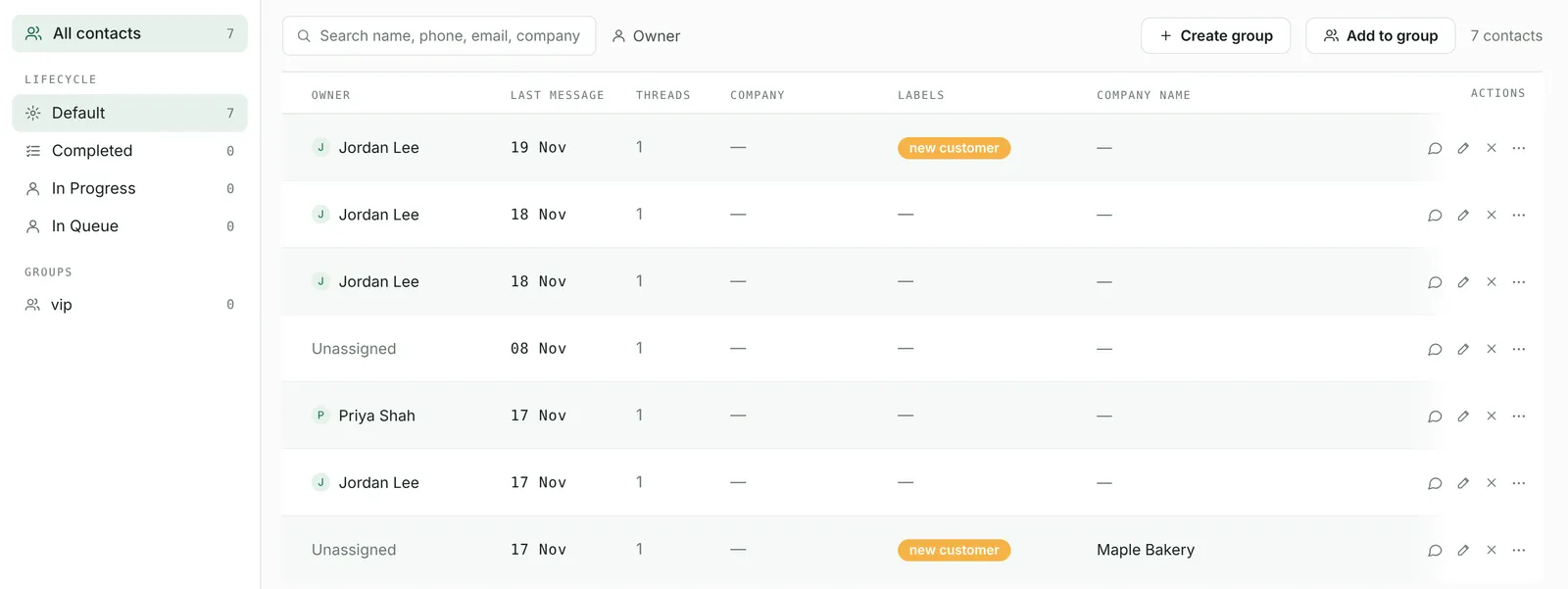
A filtered contact table showing tag and company columns, with controls to filter by owner and to create or add to a group
Filter the contact list and group the contacts you want to work with. Illustrative example using sample Maple & Co data.
Tags
Label contacts, for example by interest, request or preference.
Filters
Narrow contacts using the criteria available, such as lifecycle stage, owner or tags.
Groups
Keep a set of contacts together for the work you do repeatedly.
Audiences
Choose relevant recipients before a WhatsApp broadcast.
Customer lifecycle management

See where each relationship stands.

Define stages that reflect your own customer relationships. Your team or configured workflows can move contacts between them.
  1. New enquirySomeone has asked a first question.
  2. In discussionYour team is working out what they need.
  3. Awaiting paymentThey have agreed and a step is still open.
  4. CustomerThe relationship continues after the first order or visit.
An illustrative lifecycle. Your workspace defines its own stages, and customers do not have to move in a straight line.
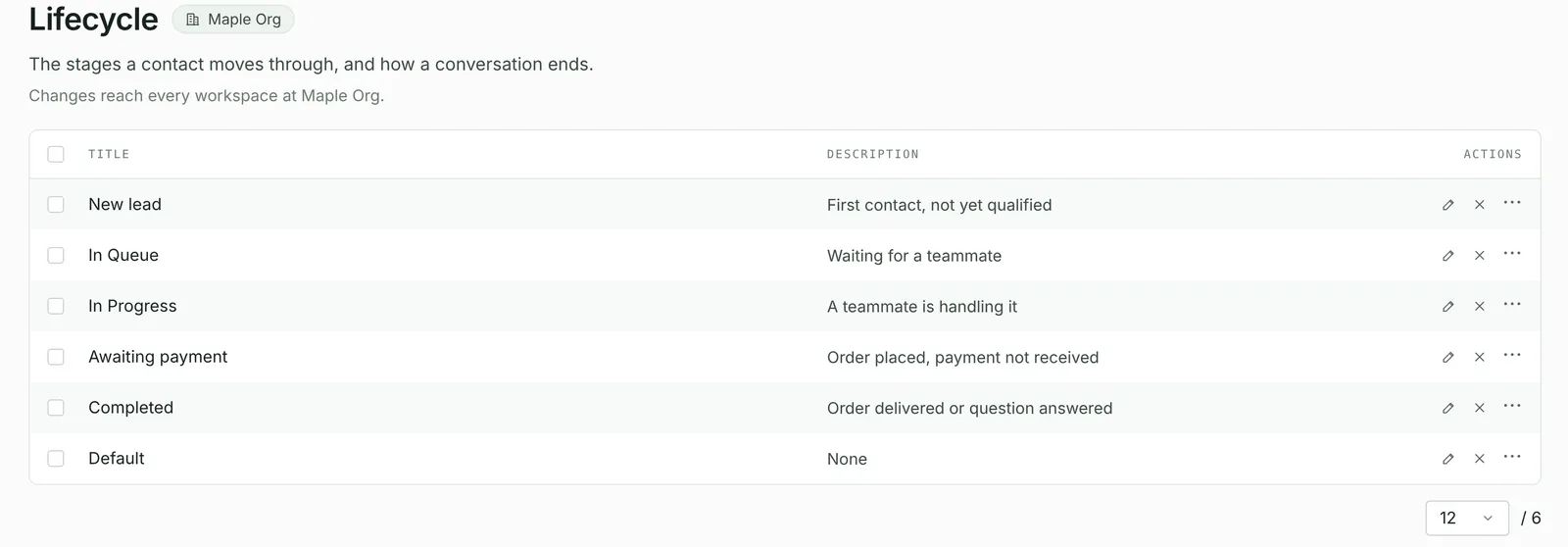
A list of sample lifecycle stages with a description for each
Stages in a sample workspace, each with its own description. Illustrative example using sample Maple & Co data.

Workflows can update a contact's lifecycle stage, and a Lifecycle Updated trigger can start a workflow when it changes.

Customer details, up to date from your phone.

In the Kinsen mobile app, your team can view customer profiles during a conversation and update supported custom fields, tags and lifecycle stages. Not every profile field can be edited in the app.
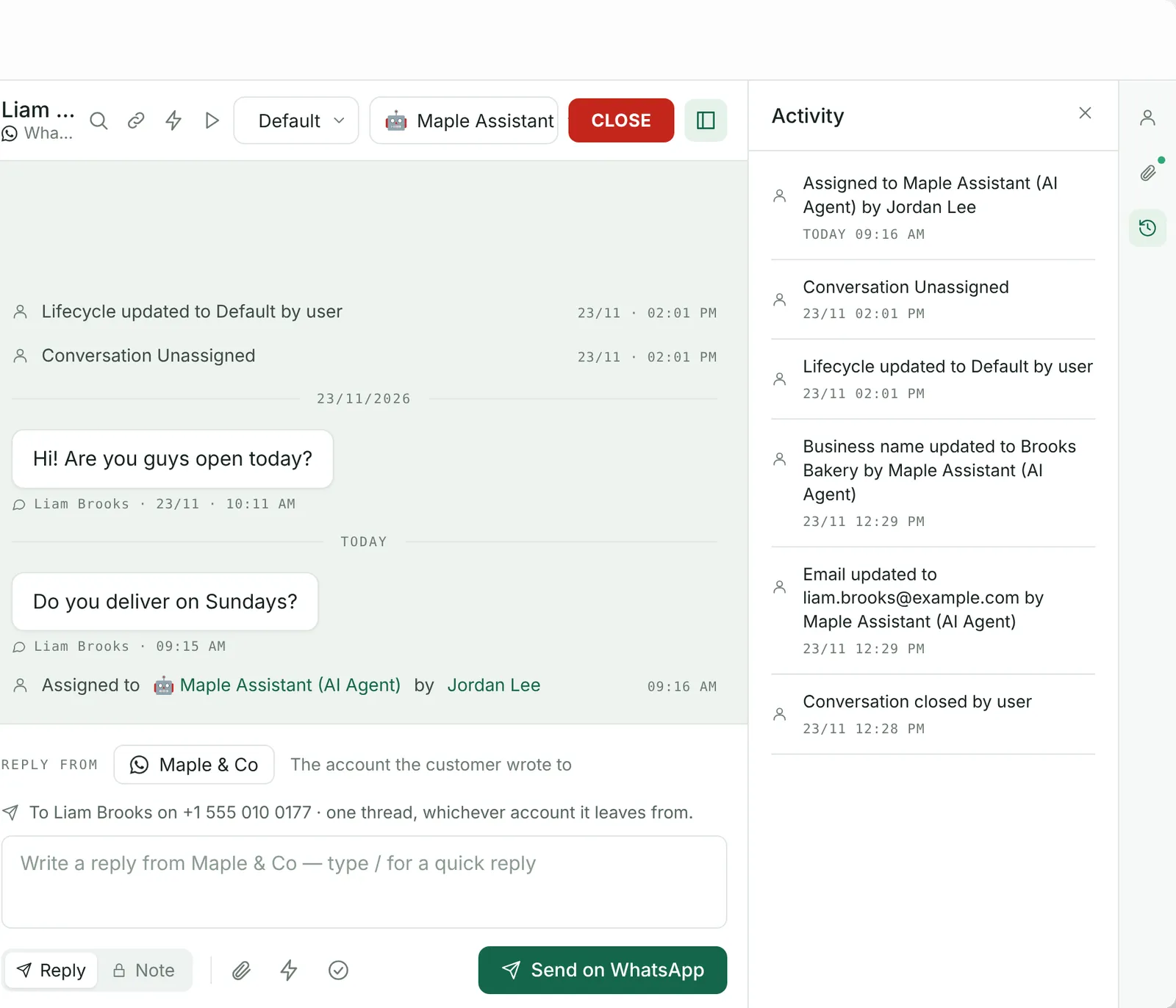
A conversation and its activity showing contact fields updated by an AI Agent for a sample customer
Sample activity showing fields updated by an AI Agent. Illustrative example using sample Maple & Co data.
AI and automated information collection

Capture information while the conversation happens.

Configured AI Agents and workflows can collect information and update permitted contact fields, so your team has less to retype.

Collect only what you need, and make sure your use of customer information meets the requirements that apply to you.

  • Workflows ask structured questions and save the answers
  • A permitted AI Agent can record information from a conversation
  • You choose which fields may be updated and when
  • Review updates, especially after changing instructions
Contact import and merging

Bring contacts in and keep records tidy.

Import existing contact data, then merge records where you find the same customer entered twice.
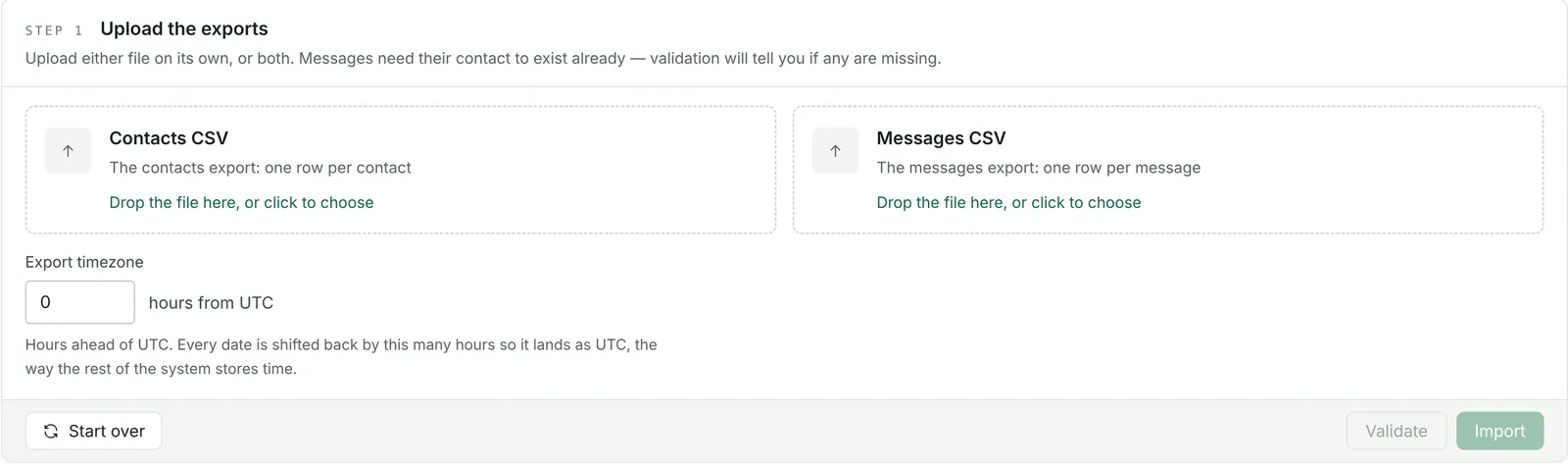
The first step of an import, with upload areas for a contacts CSV file and a messages CSV file, a timezone choice and a validate action
One import route: upload CSV exports and validate them before importing. Illustrative example using sample Maple & Co data.
Import
Bring existing contacts into Kinsen. What can be imported depends on the source data you can provide, so check it before and after.
Merging duplicates
Combine duplicate contact records. You choose the records to merge, so review them carefully first.
No automatic identity matching
Kinsen does not automatically conclude that records from different channels are the same person.
Customer activity and connected modules

Information that stays useful.

Recorded activity, such as assignments, status changes and updates, helps your team see how a customer's record has changed.

Industry customer profiles

Different businesses need different details.

Illustrative field examples, not product screens or built-in templates. Choose fields that fit your own process and obligations.

Illustrative fields

Laboratory customer

Administrative information only.

Preferred branch
List
Preferred language
List
Appointment request date
Date
Billing email
Email
Results delivery question open
Checkbox

Illustrative fields

Retail shopper

Preferences and order references.

Favourite category
List
Latest order reference
Text
Order count
Number
Loyalty member
Checkbox
Birthday
Date

Illustrative fields

Hotel guest

Details a request depends on.

Arrival date
Date
Room preference
List
Passenger count
Number
Flight number
Text
Booking link
URL

Shape customer information around your work.

Organize contacts yourself, or choose professional configuration and supported migration assistance.

Explore Professional Services
  • Fields, tags and lifecycle stage design
  • Setup of automated information collection
  • Preparation and checking of contact data for import
  • Migration assistance. Scope depends on your source platform and the data available
Frequently asked questions

Questions about contact management.

Can we add our own contact fields?

Yes. Create fields for the information your business needs. Field types include text, number, email, URL, date, checkbox and list.

How are tags different from lifecycle stages?

Tags are labels that add context, and a contact can be described in several ways. A lifecycle stage shows where the customer is in a sequence your workspace defines.

Can we change the lifecycle stages?

Yes. Your workspace defines the stages. Configured workflows can update a contact's stage and can start when it changes.

Can we import existing contacts?

Yes. What can be brought over depends on the source data you can provide. Our team can help prepare and check it as part of an agreed migration.

Can duplicate contacts be merged?

Yes. You can merge duplicate contact records, and you choose which records to merge. Kinsen does not automatically decide that records on different channels belong to the same person.

Can AI Agents and workflows update contact information?

Yes, where you configure and permit it. Decide which fields may be updated, test the instructions and review the results.

Is Kinsen a replacement for a CRM?

Kinsen keeps the customer information that supports your communication. If you use a separate business system, ask our team whether a connection is feasible through its API.

Customer contact management

Better context. Clearer conversations.

Tell us what your team needs to know about a customer and we will walk through how that information could be organized.